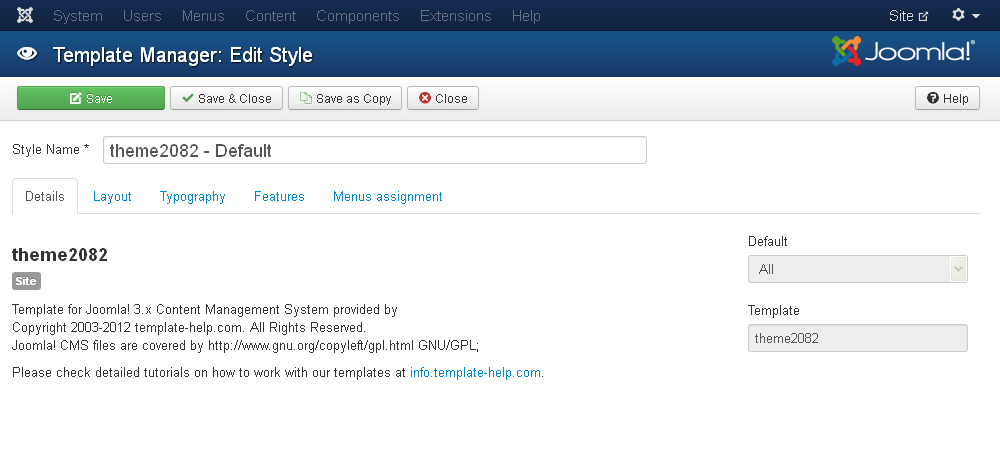
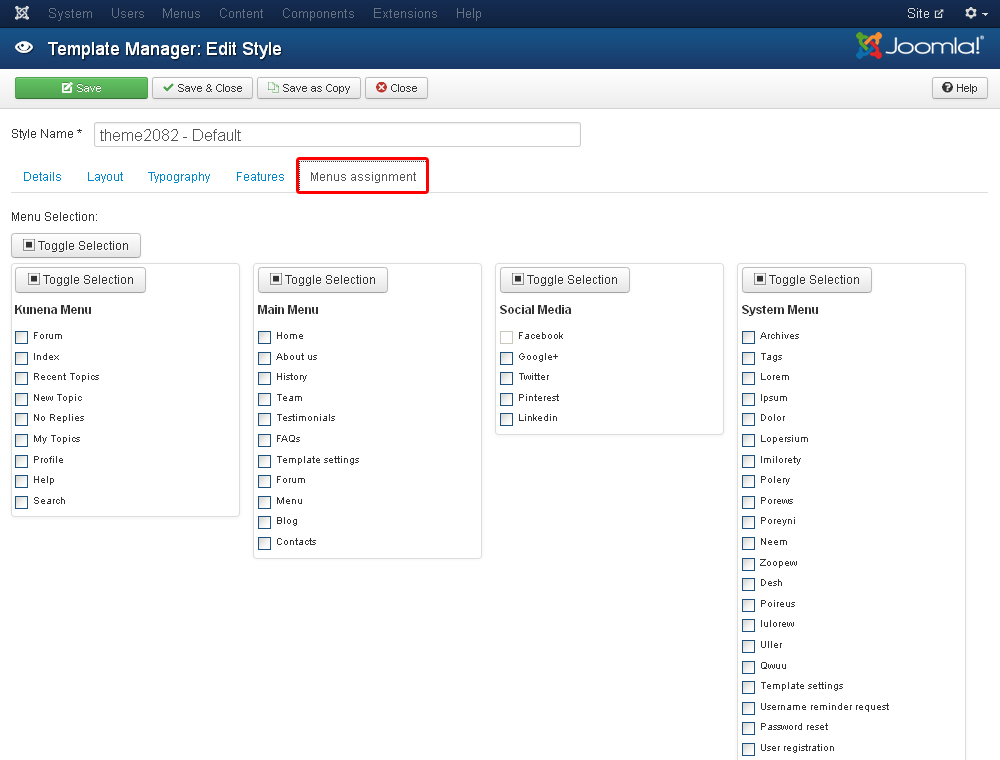
This tutorial will provide you with Joomla 3.x template settings overview.
Joomla 3.x. Template settings overview
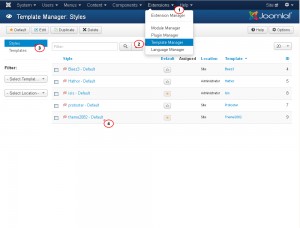
In order to open template settings, you should go to Extensions > Template Manager >Styles page and open your template:
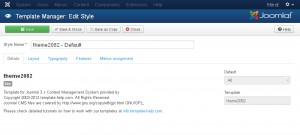
There you will see the tabs that represent template settings:
-
In the Layout tab you can set template layout and change template elements positions.
-
You can upload logo and change logo width under Logo Settings section:

-
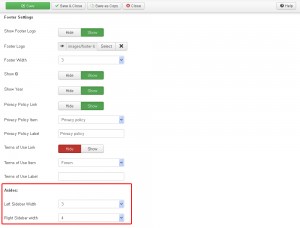
Footer Settings allow you to change logo image, footer width and edit footer copyright message. You can check our video tutorial: How to change footer copyright message. It will show you how to modify copyright message:

-
Asides settings allow you to change sidebar width:
-
In the Typography tab you can see settings related to template styles. There you can change Category, Featured, Blog and Item views:

-
Features tab shows settings for additional template features, like To top button, Back to desktop version button and jQuery Black&White plugin:

-
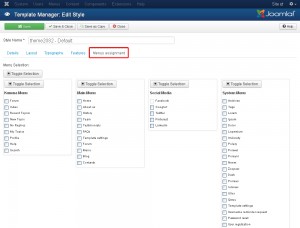
Menu assignment tab allows assigning template to the selected menu items:
Feel free to check the detailed video tutorial below:
Joomla 3.x. Template settings overview