This tutorial shows you how to manage posts/pages Grid Options in CherryFramework 4 templates.
We can consider that there are 3 parts/elements within a page/post. They are: Header, Page Content and Footer. We can manage the layout for each element in the WordPress admin panel.
General grid layout for Pages/Posts:
Log in to WordPress admin panel and go to Cherry > Options.
Header: in Headertab, you can set the grid layout for the Header. There are 2 options for you to select: Wide and Boxed.
Wide: Set the element fullwidth, without left and right margin.
Boxed: Set the element into a container/box with a specific width (pixel value).
The pixel number can be adjusted in Boxed width field right below the Grid Options
Page Content:
Footer:
Set a different grid layout for a specific post/page:
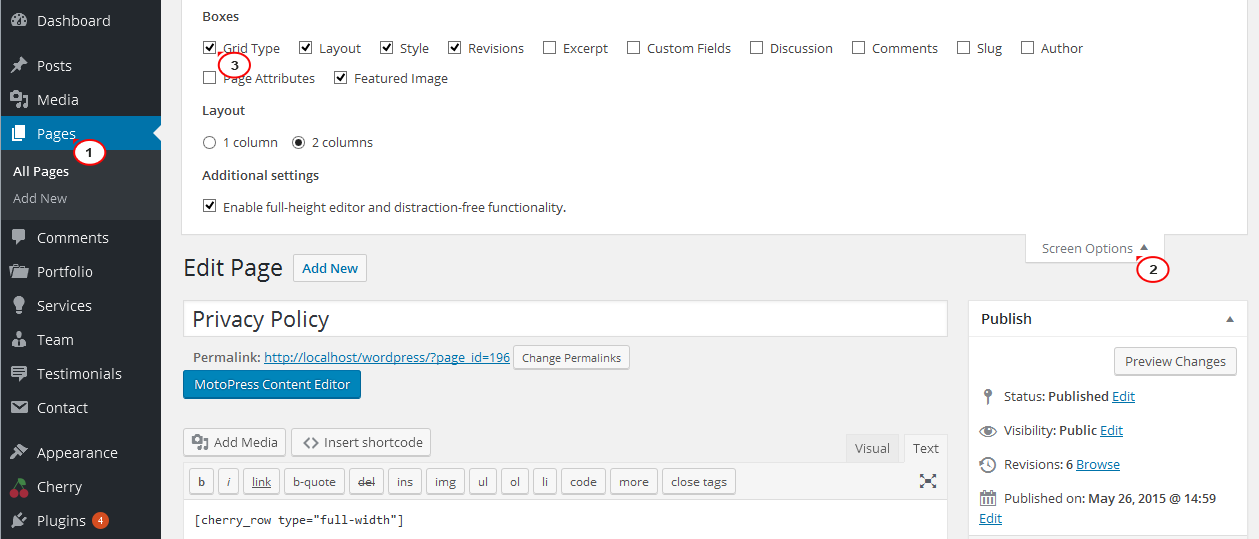
Open any page/post to edit. In the page editor, go to Screen Options, check the Grid type to turn it on.
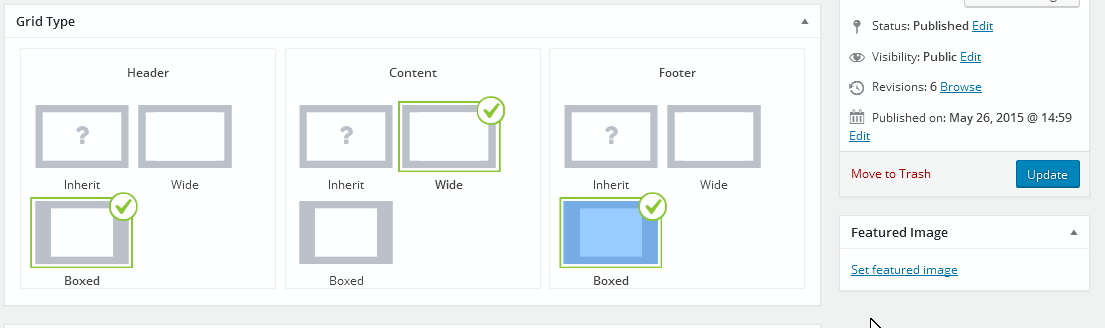
Scroll down to see the Grid type. All the pages/posts which have Grid type set as Inherit for all the 3 parts/elements (Header, Content, Footer) have the same grid layout that was set earlier at the Cherry > Options section. See this screenshot:
If you need to get a different grid layout for any post/page, just select the Wide/Boxed option in the Grid Type field under the post/page editor.
Refresh the page to see the new grid layout.
Feel free to check the detailed video tutorial below:
This tutorial will show you how to setup post/page title with featured image background at the top of page.
Submit a ticket
If you are still unable to find a sufficient tutorial regarding your issue please use the following link to submit a request to our technical support team. We'll provide you with our help and assistance within next 24 hours: Submit a ticket