Categories

Featured templates

Featured templates

Featured templates

Featured templates

Featured templates

Featured templates

Featured templates

Featured templates

Featured templates

Featured templates

Featured templates

Featured templates

Featured templates

Featured templates

Joomla 3.x. How to enable/disable lightboxes (in JoomGallery component)

George Jones February 20, 2017
Rating: 5.0/5. From 2 votes.
Please wait...

This tutorial shows how to disable/enable lightboxes (in JoomGallery component) in Joomla 3.x templates.

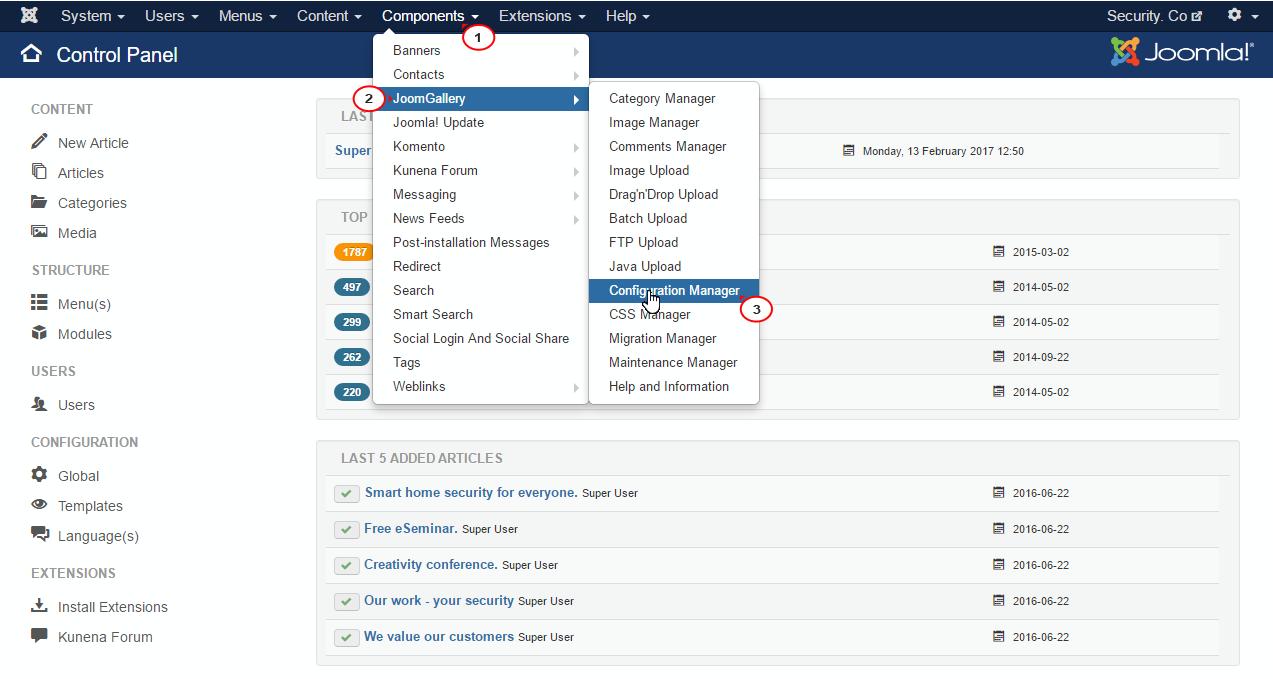
  1. Login to Joomla admin panel, navigate to Components, click on Joomla gallery and open Configuration Manager.

    How_to_disable_enable_lightboxes_in_JoomlaGallery_component_in_Joomla_3_x_templates-1
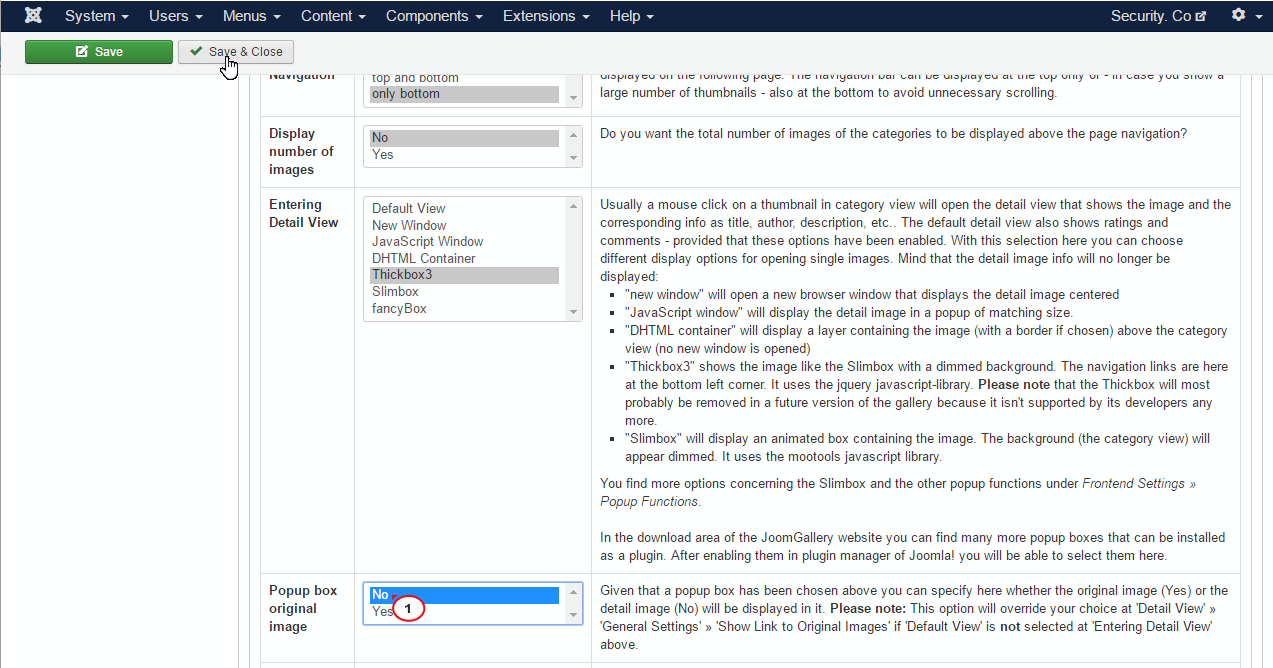
  2. Open the Category View Tab, search for Entering Detail View and change default ‘fancyBox’ to ‘Thickbox3’.

    How_to_disable_enable_lightboxes_in_JoomlaGallery_component_in_Joomla_3_x_templates-2
  3. Search for ‘Popup box original image’ and set it to ‘No’.

    How_to_disable_enable_lightboxes_in_JoomlaGallery_component_in_Joomla_3_x_templates-3
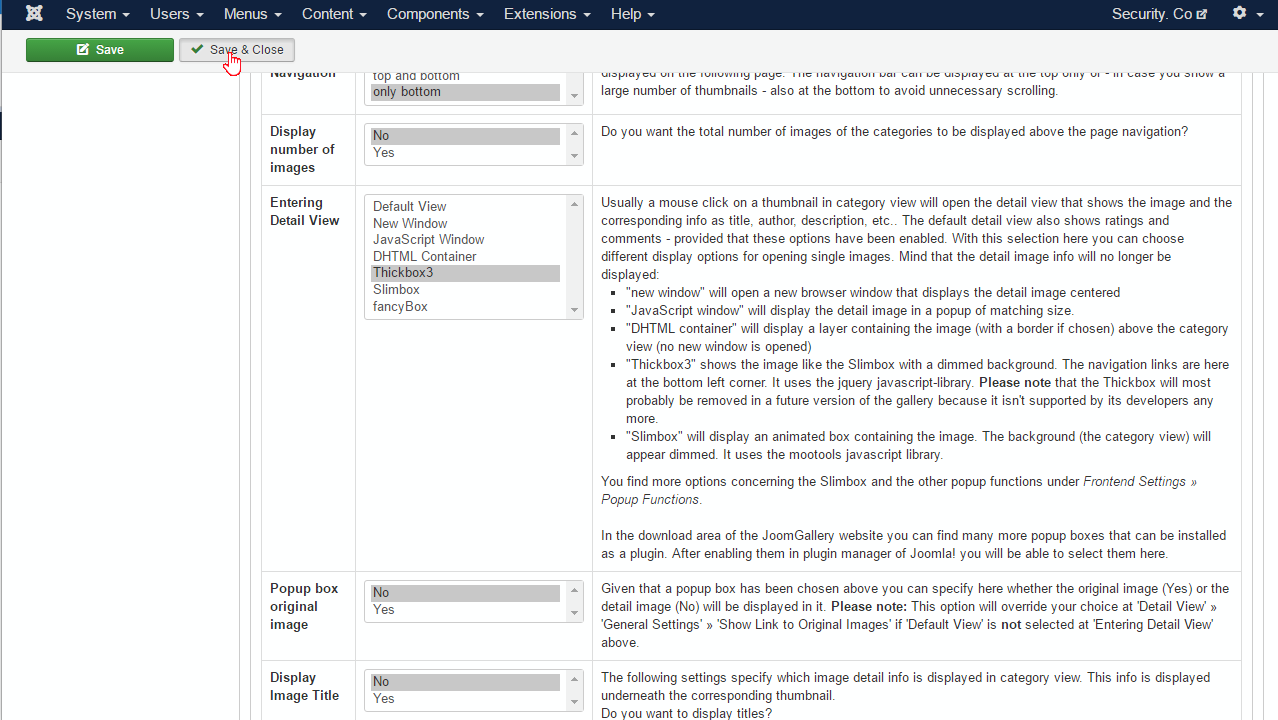
  4. When both changes are done, press the Save&Close button.

    How_to_disable_enable_lightboxes_in_JoomlaGallery_component_in_Joomla_3_x_templates-4
  5. Then open your site gallery page to see the changes.

    How_to_disable_enable_lightboxes_in_JoomlaGallery_component_in_Joomla_3_x_templates-5

Feel free to check the detailed video tutorial below:

Joomla 3.x. How to enable/disable lightboxes (in JoomGallery component)
Joomla Responsive templates
This entry was posted in Joomla! Tutorials and tagged joomgallery, joomla, lightbox. Bookmark the permalink.

Submit a ticket

If you are still unable to find a sufficient tutorial regarding your issue please use the following link to submit a request to our technical support team. We'll provide you with our help and assistance within next 24 hours: Submit a ticket