Categories

Featured templates

Featured templates

Featured templates

Featured templates

Featured templates

Featured templates

Featured templates

Featured templates

Featured templates

Featured templates

Featured templates

Featured templates

Featured templates

Featured templates

OpenCart 2.x. How to put the website in maintenance mode

Iris Burke August 29, 2016
Rating: 5.0/5. From 2 votes.
Please wait...

This tutorial will show you how to put OpenCart 2 website in maintenance mode.

In order to enable maintenance mode you should perform the following steps:

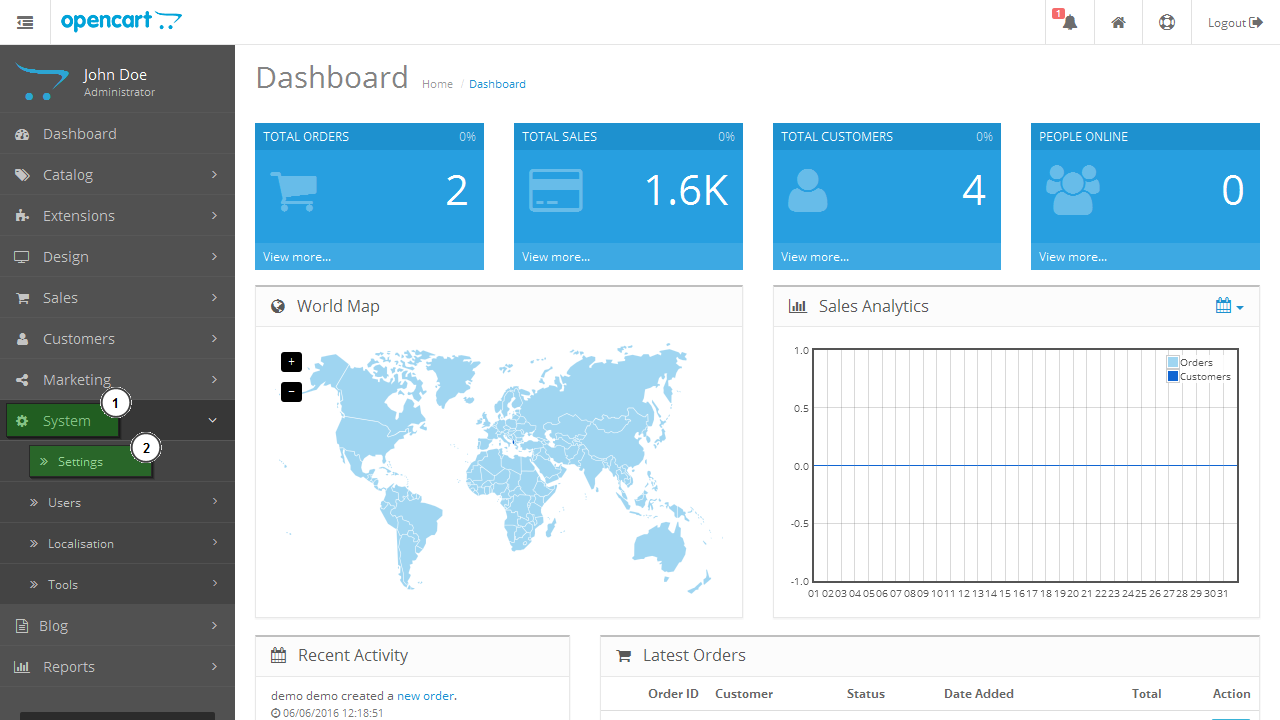
  1. Open your OpenCart admin panel and navigate to the System -> Settings tab.

    OpenCart_2.x.How_to_put_the_website_in_maintenance_mode1
  2. Click Edit button on the right of your store name to open settings page:

    OpenCart_2.x.How_to_put_the_website_in_maintenance_mode2
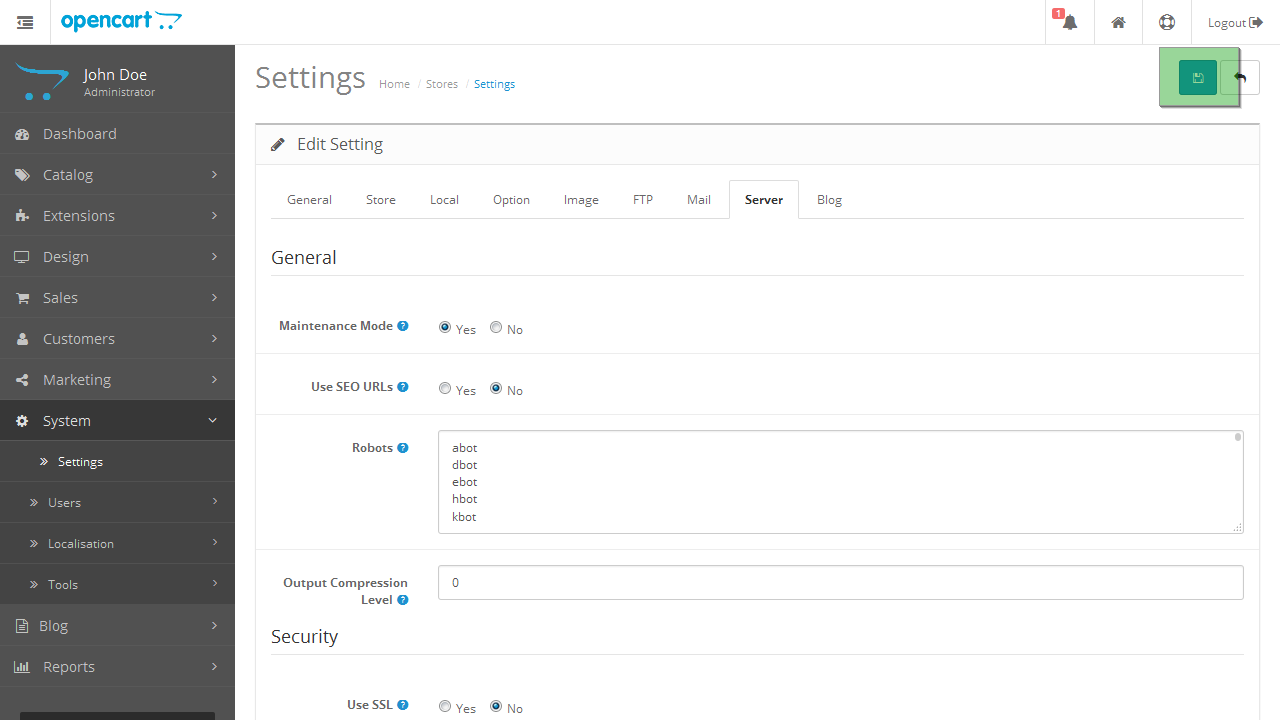
  3. Navigate to Server tab:

    OpenCart_2.x.How_to_put_the_website_in_maintenance_mode3
  4. Select yes in a Maintenance Mode section:

    OpenCart_2.x.How_to_put_the_website_in_maintenance_mode4
  5. Click Save button on the top right of the page to save the changes:

    OpenCart_2.x.How_to_put_the_website_in_maintenance_mode5
  6. Log off and refresh the page to see maintenance mode enabled on your site.

    OpenCart_2.x.How_to_put_the_website_in_maintenance_mode6

Check out the full scale of high-quality OpenCart themes.

Feel free to check the detailed video tutorial below:

OpenCart 2.x. How to put the website in maintenance mode
Best OpenCart Templates
This entry was posted in OpenCart Tutorials and tagged maintenance, Opencart2, under construction. Bookmark the permalink.

Submit a ticket

If you are still unable to find a sufficient tutorial regarding your issue please use the following link to submit a request to our technical support team. We'll provide you with our help and assistance within next 24 hours: Submit a ticket