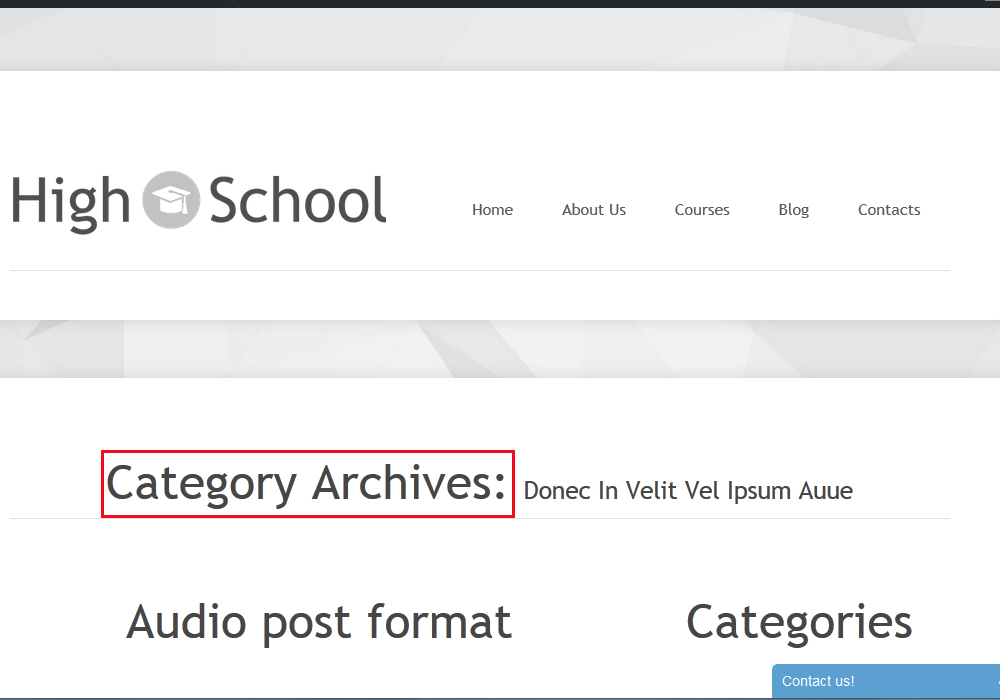
This tutorial shows how to edit content on Category & Archives pages in CherryFramework 3.x.
CherryFramework 3. How to edit Category/Archives page layout
Category page title is called out from wp-content/themes/CherryFramework/title.php file:

-
Connect to server via FTP or open cPanel File manager. Copy the title.php file from the wp-content/themes/CherryFramework folder into child theme, i.e. into wp-content/themes/themeXXXXX directory.
-
Open the copied file in the wp-content/themes/themeXXXXX directory on server, find and edit the following line:
<?php printf( theme_locals("category_archives").": %s", '<small>' . single_cat_title( '', false ) . '</small>' ); ?>
Change it to:
<?php printf('<small>' . single_cat_title( '', false ) . '</small>' ); ?>
Save changes in the title.php file and check the Category page layout after that.
-
To edit Archives page layout, copy the wp-content/themes/CherryFramework/loop/loop-archives.php file into the wp-content/themes/themeXXXXX/loop folder on server. Please note in case loop folder is missing in child theme, you will need to create the folder.
-
Open copied loop-archives.php file, find and delete the archive_lists code:
  <div class="archive_lists">
   <div class="row-fluid">
   <div class="span4">
   <h3 class="archive_h"><?php echo theme_locals("last_posts"); ?></h3>
   <div class="list styled check-list">
   <ul>
   <?php $archive_30 = get_posts('numberposts=30');
   foreach($archive_30 as $post) : ?>
   <li><a href="<?php the_permalink(); ?>"><?php the_title();?></a></li>
   <?php endforeach; ?>
   </ul>
   </div>
   </div>
   <div class="span4">
   <h3 class="archive_h"><?php echo theme_locals("archives_month"); ?></h3>
   <div class="list styled check-list">
   <ul>
   <?php wp_get_archives('type=monthly'); ?>
   </ul>
   </div>
   </div>
   <div class="span4">
   <h3 class="archive_h"><?php echo theme_locals("archives_subject"); ?></h3>
   <div class="list styled check-list">
   <ul>
   <?php wp_list_categories( 'title_li=' ); ?>
   </ul>
   </div><!-- .archive_lists -->
Removal of the code will delete the following lists on Archives page:

-
Save changes in the loop-archives.php file. Refresh front-end with Ctrl/Cmd+F5 hotkeys.
Feel free to check the detailed video tutorial below:
CherryFramework 3. How to edit Category/Archives page layout