Categories

Featured templates

Featured templates

Featured templates

Featured templates

Featured templates

Featured templates

Featured templates

Featured templates

Featured templates

Featured templates

Featured templates

Featured templates

Featured templates

Featured templates

CherryFramework 4. How to change favicon

Carey Burns July 9, 2015
Rating: 5.0/5. From 1 vote.
Please wait...
CherryFramework 4. How to change favicon

Our Support team is ready to present a new tutorial that shows how to change the favicon in CherryFramework 4 templates.

cherry4_how_to_change_favicon_1
  1. Navigate to Cherry -> Options -> General in your Dashboard.

  2. In Favicon image section, click on Select media button:

    cherry4_how_to_change_favicon_2
  3. You can upload image file from your computer or select it from the media library.

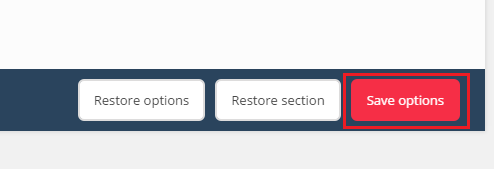
  4. Click on Save Options button when you are done:

    cherry4_how_to_change_favicon_3
  5. Check the result on your website:

    cherry4_how_to_change_favicon_4

Feel free to check the detailed video tutorial below:

CherryFramework 4. How to change favicon
This entry was posted in Monstroid Tutorials, WordPress Tutorials and tagged CherryFramework4, favicon, WordPress. Bookmark the permalink.

Submit a ticket

If you are still unable to find a sufficient tutorial regarding your issue please use the following link to submit a request to our technical support team. We'll provide you with our help and assistance within next 24 hours: Submit a ticket