Categories

Featured templates

Featured templates

Featured templates

Featured templates

Featured templates

Featured templates

Featured templates

Featured templates

Featured templates

Featured templates

Featured templates

Featured templates

Featured templates

Featured templates

Joomla 3.x. How to create user menu

Elina Webb March 16, 2016
Rating: 5.0/5. From 2 votes.
Please wait...

This video tutorial will show how to create User Menu in Joomla 3.x templates.

Joomla 3.x. How to create user menu
  1. Create the User Menu:

    1. Log into Joomla admin panel , go to Menus – Menus Manager:

      Joomla_3.x-How_to_create_user_menu-1
    2. Click New to create a new menu:

      Joomla_3.x-How_to_create_user_menu-2
    3. Fill in the details of this new menu, including Title, Menu Type and Description. Save & Close:

      Joomla_3.x-How_to_create_user_menu-3
    4. Click on this new User Menu to add some new Menu Items for it:

      Joomla_3.x-How_to_create_user_menu-4

      Click New button:

      Joomla_3.x-How_to_create_user_menu-5

      Choose Menu Item Type:

      Joomla_3.x-How_to_create_user_menu-6

      For this User Menu, we can use any kind of menu type under Users Manager. User Profile for example for the first menu item:

      Joomla_3.x-How_to_create_user_menu-7

      Add a Menu title. Save & Close:

      Joomla_3.x-How_to_create_user_menu-8
    5. We can create more menu items in the same way:

      Joomla_3.x-How_to_create_user_menu-9
  2. Create a module for the new User Menu:

    1. Go to Extensions – Module Manager:

      Joomla_3.x-How_to_create_user_menu-10
    2. Click New button:

      Joomla_3.x-How_to_create_user_menu-11
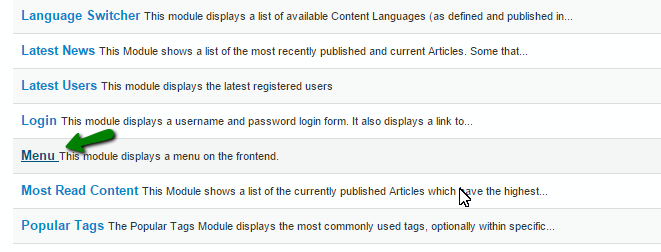
    3. Select a module type as Menu:

      Joomla_3.x-How_to_create_user_menu-12
    4. Fill in the Title:

      Joomla_3.x-How_to_create_user_menu-13
    5. Then select a position for this module. The position can be found in the list, under themeXXXX (XXXX is the number of the theme); or you can click here to find out how to check all the available positions in a template:

      Joomla_3.x-How_to_create_user_menu-14
    6. Open Options tab to select the new User Menu for this module:

      Joomla_3.x-How_to_create_user_menu-15
    7. Click Menu Assignment tab to select on which page this module should show up. Save & Close:

      Joomla_3.x-How_to_create_user_menu-16

Go to your site, refresh the Selected page – for example Main page (Home page) where we have assigned the User menu – to see changes:

Joomla_3.x-How_to_create_user_menu-17

Feel free to check the detailed video tutorial below:

Joomla 3.x. How to create user menu

Joomla Responsive templates
This entry was posted in Joomla! Tutorials and tagged create, joomla, menu, user. Bookmark the permalink.

Submit a ticket

If you are still unable to find a sufficient tutorial regarding your issue please use the following link to submit a request to our technical support team. We'll provide you with our help and assistance within next 24 hours: Submit a ticket