Categories

Featured templates

Featured templates

Featured templates

Featured templates

Featured templates

Featured templates

Featured templates

Featured templates

Featured templates

Featured templates

Featured templates

Featured templates

Featured templates

Featured templates

WordPress Cherry 3.x. How to add Google Analytics tracking code

George Jones December 4, 2014
Rating: 5.0/5. From 1 vote.
Please wait...

This video tutorial shows how to add Google Analytics tracking code to your WordPress website.

WordPress. How to add Google Analytics tracking code

  1. In order to generate a Tracking ID, you should log into the Google Analytics website at http://www.google.com/analytics/ using your Google account. After that you need to generate Google Analytics tracking code. The code looks like on the screenshot below. Copy this code:

    Wordpress_How_to_add_Google_Analytics_tracking_code-1

  2. Open WordPress Admin Panel, go to Cherry Options:

    Wordpress_How_to_add_Google_Analytics_tracking_code-2

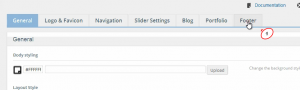
  3. Select Footer tab:

    Wordpress_How_to_add_Google_Analytics_tracking_code-3

  4. In ‘Google Analytics Code’ section, paste the code that we have just copied from Google Analytics website here and click ‘Save Options’:

    Wordpress_How_to_add_Google_Analytics_tracking_code-4

    Please make sure to paste the copied code without opening <script> and closing </script> tag.

Feel free to check the detailed video tutorial below:

WordPress. How to add Google Analytics tracking code

Top Premium Wordpress Themes
This entry was posted in WordPress Tutorials and tagged analytics, code, google, tracking, WordPress. Bookmark the permalink.

Submit a ticket

If you are still unable to find a sufficient tutorial regarding your issue please use the following link to submit a request to our technical support team. We'll provide you with our help and assistance within next 24 hours: Submit a ticket