Categories

Featured templates

Featured templates

Featured templates

Featured templates

Featured templates

Featured templates

Featured templates

Featured templates

Featured templates

Featured templates

Featured templates

Featured templates

Featured templates

Featured templates

WordPress Blogging themes. How to change or deactivate page pre-loader

Daisy Cooper August 31, 2016
Rating: 2.1/5. From 78 votes.
Please wait...

This tutorial will show you how to change or deactivate pages’ pre-loader.

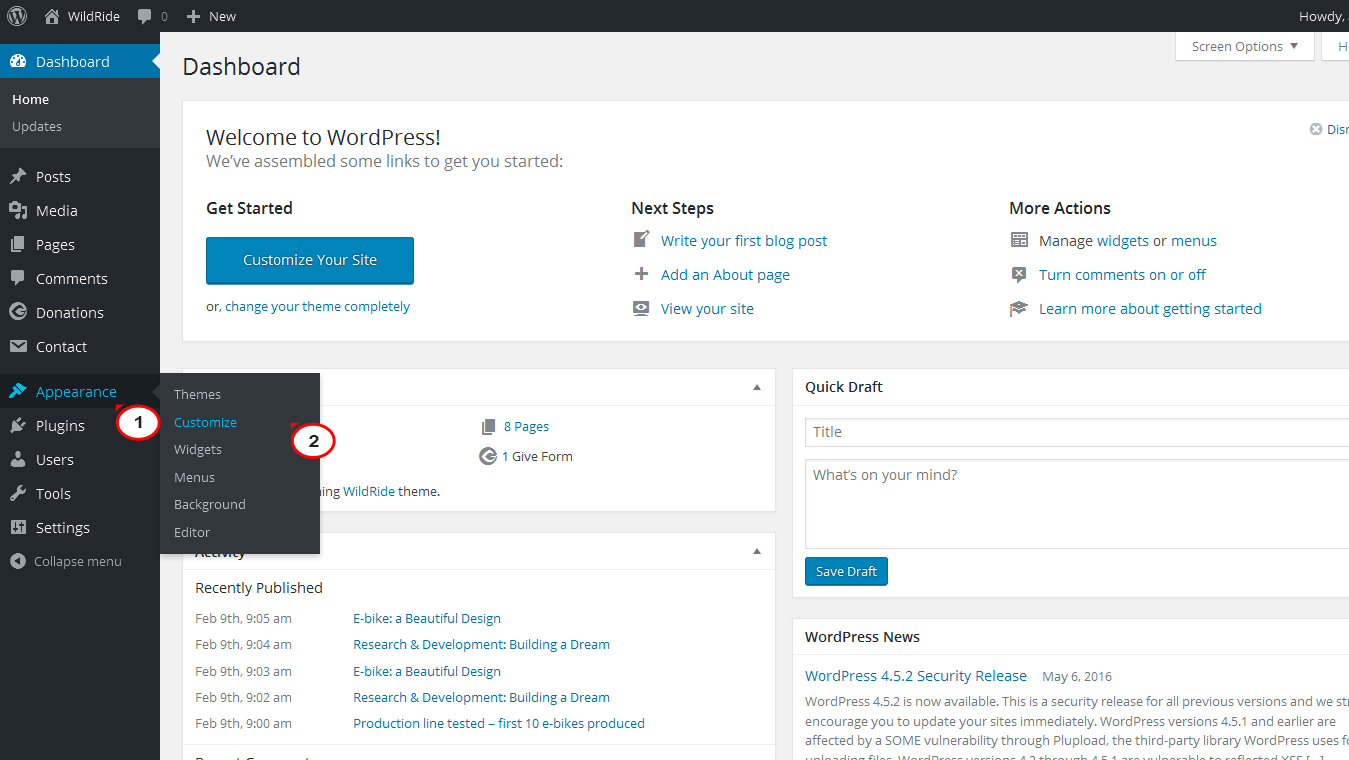
  1. Please, navigate to your Admin panel -> Appearance -> Customize.

    WordPress Blogging themes. How to change or deactivate page pre-loader

    There you will see a list:

    WordPress Blogging themes. How to change or deactivate page pre-loader1
  2. Please, choose Site Identity tab. Click on Show preloader when open a page:

    WordPress Blogging themes. How to change or deactivate page pre-loader3
  3. Click on save and publish button. Navigate to your frontend and refresh the page.

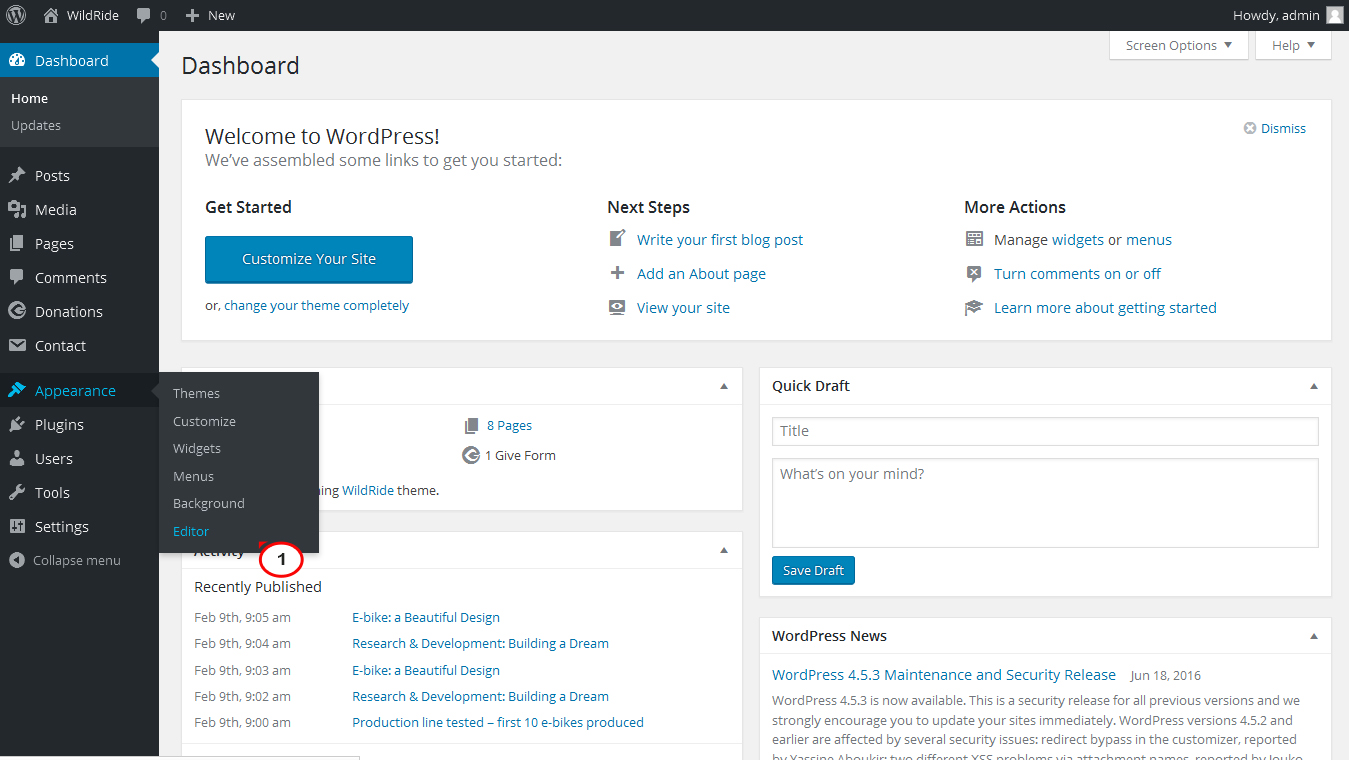
  4. To change the color of the pre-loader, please, navigate to your Appearance -> Editor menu and open style.css file for editing.

    WordPress Blogging themes. How to change or deactivate page pre-loader4
  5. Add this css rule to the end of your style.css file:

    .tm-folding-cube .tm-cube:before {
    			background-color: XXX !important;
    		}

    Here XXX is your color code(hexadecimal).

  6. Next, click on Update File button to apply the edits.

    WordPress Blogging themes. How to change or deactivate page pre-loader5)

    Navigate to your site frontend and refresh the page.

Now you know how to change or deactivate page pre-loader.

Have a look at our collection of elegant WordPress Blogging themes.

Feel free to check the detailed video tutorial below:

WordPress Blogging themes. How to change or deactivate page pre-loader
Buy Wordpress Themes
This entry was posted in WordPress Tutorials and tagged preloader, WordPress Blogging themes. Bookmark the permalink.

Submit a ticket

If you are still unable to find a sufficient tutorial regarding your issue please use the following link to submit a request to our technical support team. We'll provide you with our help and assistance within next 24 hours: Submit a ticket