 ES
 RU
 DE
 PL
 IT
 TR
 FR
 BR
 NL
 CN
 CZ
 UA
 HU
 SE
 Unlimited Downloads
 Sale







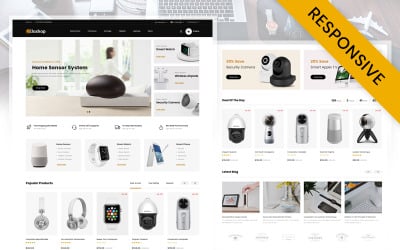
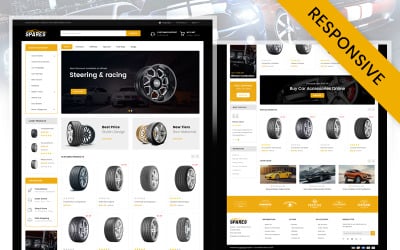

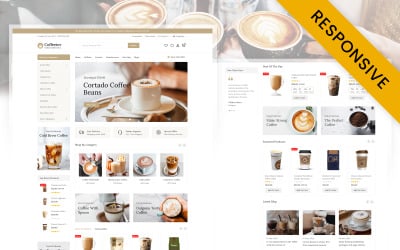

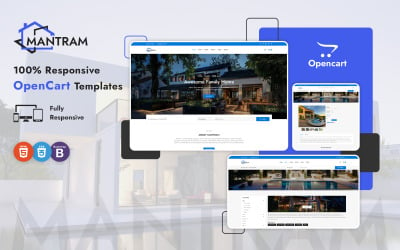
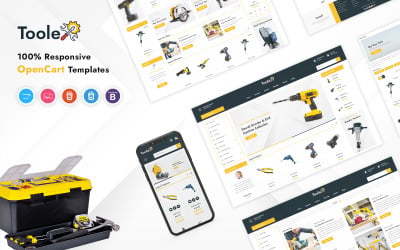
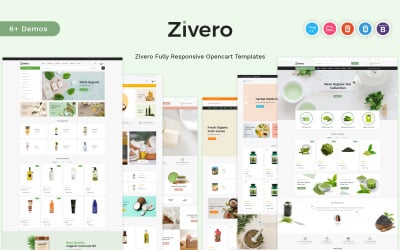
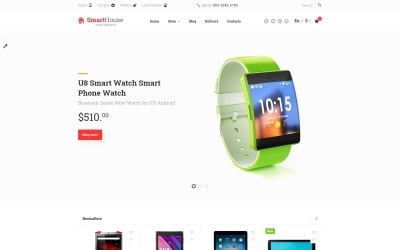






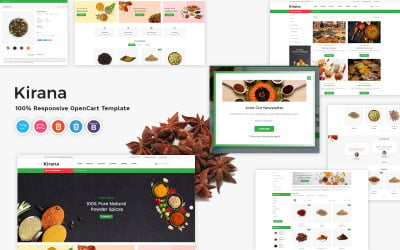





5 Best OpenCart Themes 2026
| Template Name | Downloads | Price |
|---|---|---|
| Shopnia - Multipurpose OpenCart Template | 23 | $41 |
| Lookan - Furniture OpenCart 4 & Openccart 3 Template | 11 | $101 |
| Winehub Alcohol and Liquor Responsive Opencart Theme | 2 | $44 |
| Spareart - Automobile Store OpenCart Responsive Template | 14 | $39 |
| Wader Sports Shoes Store OpenCart Responsive Template | 4 | $39 |
Why OpenCart is the Best Choice for Your Online Business
OpenCart is an open source ecommerce software used to build online stores. Simply install, select template, add product and you become the owner of an online store!
OpenCart Templates FAQ
Is OpenCart any good?
TeOpenCart is a complete e-commerce platform that lets you create your online shop, customize, add, and manage your products or services. OpenCart is an open-source system. This means that all around the main OpenCart script is free and that you can modify the platform as you want. The essential part of OpenCart is that you have lifetime free software updates and free support. It requires a little coding knowledge for extensive management. And it’d be better to have some experience in choosing a hosting, launching a website, and changing the code.
Which is better WooCommerce or OpenCart?
WooCommerce is a great option for many WordPress fans. It fits ideally with the WordPress sites and it’s logical to choose WooCommerce plugin for WordPress website. On the other hand, OpenCart is an awesome open-source solution for other types of websites. If you don’t want to start a WordPress site for using their e-commerce plugin, OpenCart theme may be a better option for you. With global cooperation, you could easily transfer your business beyond your locality very easily. OpenCart will be perfect for ambitious entrepreneurs and their big e-commerce plans.
Is OpenCart safe?
OpenCart can be called a secure platform. However, like in the other content management systems, we recommend you to immediately set up the cybersecurity programs to your site from its hacking.
How can I change my OpenCart theme?
With this step-by-step guide, you will do it very quickly. At first, you will need to save the theme’s files and unzip them beforehand. We also recommend you make a backup of all the folders of your installation before making the changes.
- You need to access your hosting account via FTP.
- After connecting the server, open the folder on your computer with the theme files in the left window of FTP and open the folder with the OpenCart installation in the server in the right window:
- Copy the folder with the template here: Catalog > View > Theme folder to the theme you install here: Catalog > View > Theme folder in the server. Open the upload to the host folder of the new theme to be installed.
- Go to the Catalog folder.
- Open the View folder.
- Go to the Theme folder.
- Copy the theme folder to Catalog > View > Theme folder in the server and wait till all the files in the folder will be copied.
- Then come back to the root folders in the website installation in the folder of the theme on your local computer. Open the Image folder in both windows.
- In both windows follow the theme’s folder.
- Copy the template from your local computer to the server.
- Then come back to the root folders in the website installation. In the folder of the template on your local computer open the System folder in both windows.
- In both windows follow the Engine directory.
- Copy the controller.php file from your local computer to the server and change the existing one with the file you copy from your local computer.
- After you finished the uploads, log into your OpenCart admin page and follow the System menu. In the drop-down menu choose and click the Settings option.
- There locate your website on the list and click Edit.
- Select the Store tab.
- There locate the Template line and select your new theme in the drop-down menu.
- Save it.
- Reload the page on your website and customize your new template:
In addition, you may check this article, which describes how to install a new theme on OpenCart https://www.templatemonster.com/blog/create-opencart-store/
Or this video: https://www.youtube.com/watch?v=HC6UPZNf-7A
How to convert HTML template to OpenCart theme?
To integrate the HTML template into your OpenCart theme, you have to start it by creating a new folder at catalog/view/theme location. Name it e.g. “mynewtheme”. Then copy all folders from HTML theme: from the header, followed by the footer, modules and category pages, product page, and other pages.
How to install OpenCart template?
The process is rather easy and consists of a few quick steps.
Step 1: Download your new OpenCart template.
Remember to unzip the files before the next steps.
Step 2: Upload the OpenCart theme to your website.
Do it via FTP to the “catalog/view/theme” directory.
Step 3: Log in to your store’s admin area and go to Settings.
When you’ve uploaded the files to your template, you’ll need to change a couple of settings in your store’s admin area. To do it, log into your admin area: www.example.com/admin
Go to System > Settings in your store’s admin area and select “Edit” next to your store.
Step 4: Select your new template
In the Settings, select the “Store” tab and click the drop-down menu next to the “Template” setting. Here you’ll be able to choose the new theme that you’ve just uploaded. Once you’ve selected this, click “Save”.
Now everything is ready to customize your template
How to install OpenCart template in local host?
- Unzip the file with a template
- Upload the catalog and images folders to the root of your OpenCart installation.
- Enter your OpenCart Dashboard and go to System > Settings
- Choose your website from the list, check the box next to it, and select “Edit”
- Go to the Store Tab and choose the theme you just uploaded from the drop-down menu under the template section.
- Save it
Can I use premium OpenCart template on multiple domains?
Yes, you can use just one premium OpenCart template for multiple domains. Follow the next steps:
Step 1. Set up an OpenCart theme as your main website.
Step 2. Make sure all your domains (your stores) have your hosting provider’s name servers.
Step 3. Follow the Cpanel for mainshop.com (your main OpenCart installation). Create an add on the domain for each site you want to have as your multishop. E.g. shop1.com, shop2.com, etc. When you create the addon domain name (shop1.com and so on) the document root will be filled in like public_html/mainshop.com. Delete /mainshop.com to leave public_html.
Step 4. Go to the admin panel on mainshop.com and add a new store with address https://shop1.com/ (shop2.com/ and so on).
Step 5. That's it, we finished. Check your new shop on shop1.com, shop2.com, etc. Now you will see them without a logo, slider, products, etc. So now it’s time to customize it and fulfill with these items.
How to edit the footer in an OpenCart 3.x template?
- Log into your OpenCart Dashboard
- Go to Catalog > Information
- Now you’ll see a list of the default pages. Select the page you want to customize by clicking on the box next to it and click the “Edit” link in the far right.
- In the General Tab, type the title of the page and the description.
- Save it.
Check out the About Us page in the footer and you’ll see the changes you’ve made.