 ES
ES RU
RU DE
DE PL
PL IT
IT TR
TR FR
FR BR
BR NL
NL CN
CN CZ
CZ UA
UA HU
HU SE
SE Unlimited Downloads
  Sale
Sale 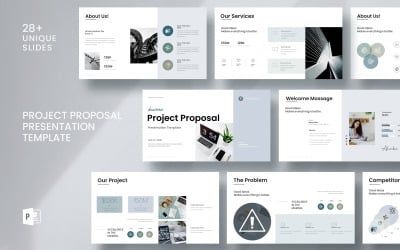











![2025 Multipurpose Pitch Deck [Version 5] PowerPoint template](https://s.tmimgcdn.com/scr/400x250/79300/i-2025-multipurpose-pitch-deck-version-5-powerpoint-template_79354-6-original.jpg)

5 Best PowerPoint Templates 2026
| Template Name | Downloads | Price |
|---|---|---|
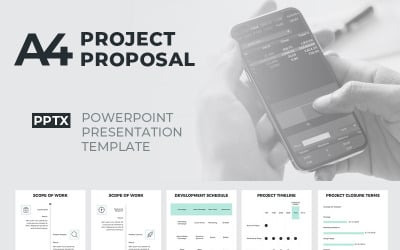
| Project Proposal Presentation Template__ | 5 | $9 |
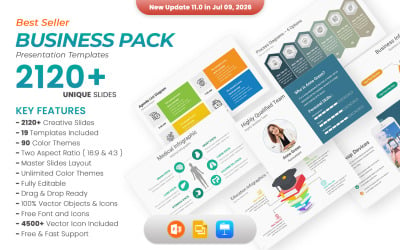
| Business Pack PowerPoint templates | 1,259 | $25 |
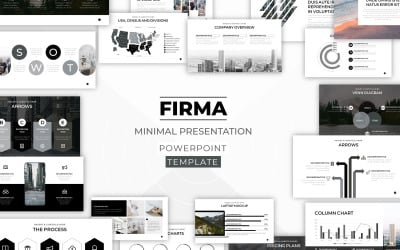
| FIRMA - Minimal Powerpoint Template | 97 | $15 |
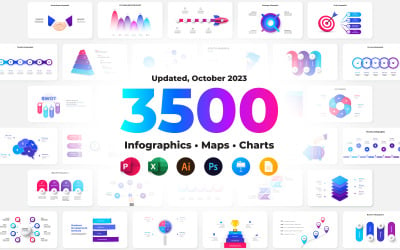
| 3500 Animated Infographics Bundle PowerPoint Templates | 80 | $24 |
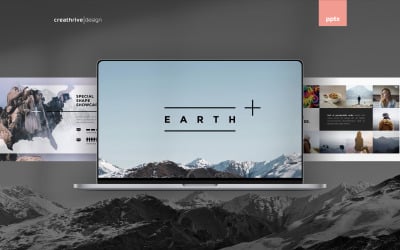
| Earth PowerPoint Presentation Template | 107 | $15 |
Best PowerPoint Presentation Templates
PowerPoint Templates FAQ
What is a template in PowerPoint?
Microsoft Office itself defines a template as “a pattern or blueprint of a slide or group of slides that you save as a .potx file”. A template usually comprises layout, fonts, colors, effects, background styles, and sometimes content. You can both create your own custom templates and save, reuse, and share them or choose from hundreds of pre-designed free or premium templates.
How to create a PowerPoint template?
To create a PowerPoint template, follow the instructions. Navigate to File > New > Blank Presentation. Select the Design tab, go to Slide Size > Custom Slide Size, and choose the page orientation and dimensions you see fit. On the View tab, choose Slide Master where you can change it or slide layouts. Select Themes and pick the theme from the gallery to add a vivid theme with special fonts and effects. Go to Background Styles and choose a background to change it. Add a placeholder by clicking on Insert Placeholder and choose the type you need, etc.
How to edit a PowerPoint template?
If you’ve decided to go with a pre-designed PPT template and require some adjustments to adapt it to your project idea, take a few steps. Open a Slide Master again and remove the unnecessary items. This is where you can change, rename, or even remove slide groupings, as well as rearranging slides to fit your needs and deleting slide types you don’t require. Then, you can add common elements to Master Slides by applying a logo or background elements, designing or changing the text in the footer, as well as applying the automatic slide numbering. Among other things, you are allowed to change colors, fonts, placeholder text, and elements in the Slide Master.
What are the best PowerPoint templates?
The best PowerPoint template is the one that perfectly matches your needs and purposes. So, before picking the right theme, answer the following questions: a) what your presentation is about; b) what message you want to communicate; c) to what audience you want to convey it; d) what final reaction you expect from your audience. Answering these questions will give you a better understanding of what template is the best for you.
How to change the PowerPoint template for an existing presentation?
To apply or change a PowerPoint template to an already-existing presentation, you need to do a few manipulations. Open the existing slideshow, navigate to the Design tab, and find the theme ribbon on the left. Hover over the ribbon and see the down arrow appear. Press the down arrow and then click on the ‘Browse for themes’ option. Go to the template file and select it to apply to the existing presentation. That should be enough.